UX-UI | MOBILE APP | B2B
2020
Industrial Precision, Now in Your Pocket
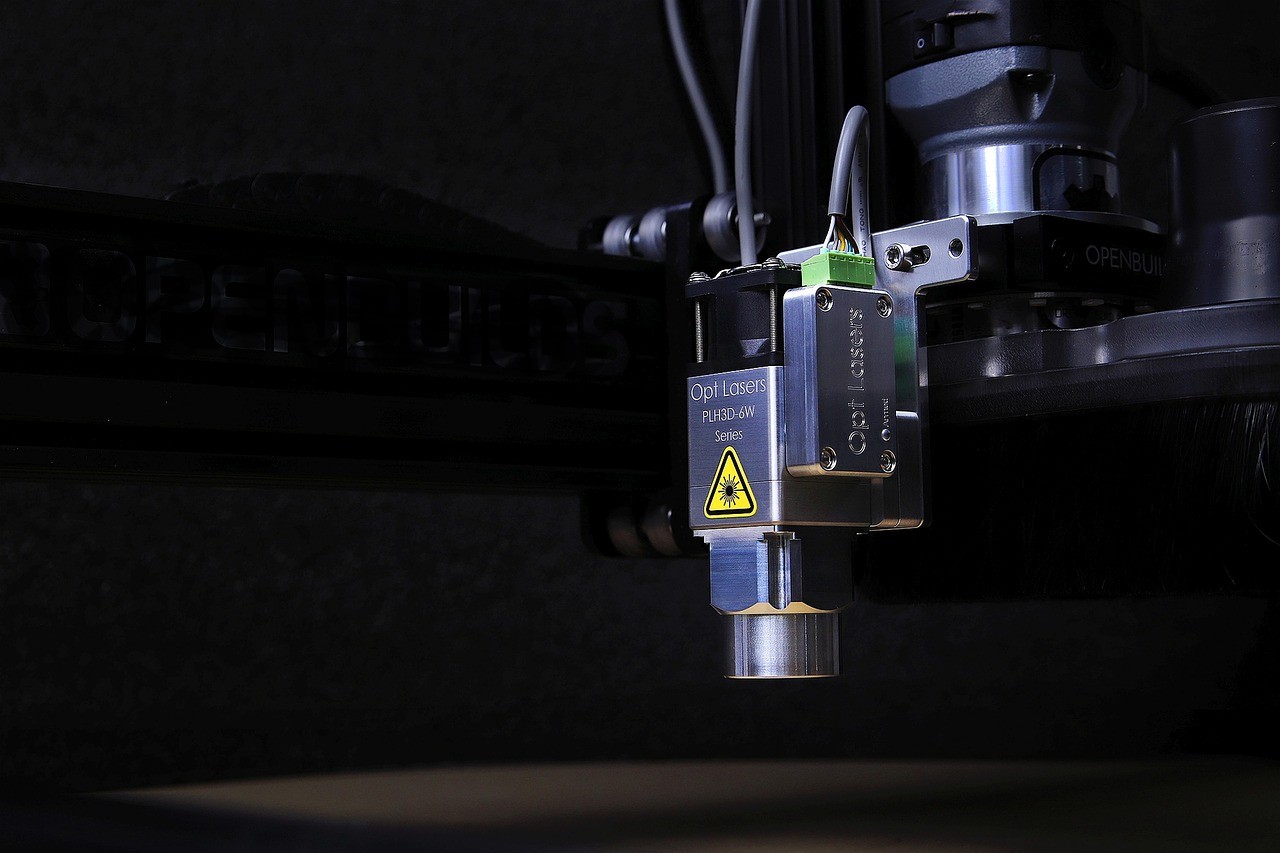
Overmark is a mobile companion app for industrial laser marking machines manufactured by a mid-sized Italian equipment company. These machines engrave serial numbers, logos, and barcodes on metal parts for automotive and aerospace manufacturing. Operators traditionally controlled these machines via dedicated Windows PCs running legacy desktop software—requiring them to be physically stationed at a computer workstation 2-5 meters away from the actual laser equipment.
The workflow inefficiency was clear: operators would design a marking job at the desktop, walk to the machine to load parts, return to the desktop to initiate the laser, walk back to verify the mark quality, and repeat. For high-volume production runs requiring frequent parameter adjustments (different materials, varying part sizes), this back-and-forth consumed significant time.
The equipment manufacturer had attempted a mobile app in 2018, but it was essentially a "start/stop" remote control—operators could trigger jobs but couldn't make design changes or adjust laser parameters. For any real work, they still needed the desktop software. The company wanted a genuine mobile solution that could handle the full workflow, potentially eliminating the desktop workstation entirely for routine operations.
Project Details:
Role: UX/UI Designer (contracted through development agency)
Timeline: 5 months (March - July 2020)
Collaboration: Worked with 2 iOS developers and 1 mechanical engineer from manufacturer
Deliverables: iOS app design (iPhone + iPad), interaction specifications, design system
The Objectives:
Enable mobile workflow: Allow operators to complete full marking jobs from design to execution on mobile device
Maintain desktop functionality: Provide access to advanced laser parameters without overwhelming simple tasks
Improve efficiency: Reduce time spent walking between workstation and machine
Support real-world conditions: Design for factory floor environments (poor lighting, gloves, noise)
Conducted site visits to 2 manufacturing facilities using the client's laser marking equipment:
Site 1: Automotive parts manufacturer (Turin, Italy) Observed 2 operators over full 8-hour shifts. Key findings:
Operators managed 3-4 laser machines simultaneously
Average time per marking cycle: 45 seconds laser time + 3-5 minutes setup/verification
Operators wore safety gloves making precise mouse/keyboard input difficult
Desktop workstation was in climate-controlled office 15 meters from noisy factory floor where machines were located
Operators made 8-12 trips per hour between office and factory floor
Site 2: Aerospace component manufacturer (Milan, Italy) Shadowed 1 senior operator and 1 trainee. Additional insights:
Training new operators on desktop software took 2-3 days
Most common task: adjusting laser power for different metal thicknesses (happened 20+ times per shift)
Operators wanted to stay near machines to monitor quality, but couldn't make parameter adjustments without returning to desktop
iPad was already used for other factory systems—operators comfortable with tablets
Operator Interviews
Interviewed 6 laser machine operators across client's customer base to understand pain points:
Top frustrations:
"I spend more time walking than actually working" (5/6 operators)
"If I could just tweak the power from my phone, I'd save hours every week" (4/6)
"The desktop software has too many buttons—I only use maybe 10% of them" (6/6)
"Training is hard because new people get overwhelmed by all the settings" (3/6)
Workflow analysis revealed typical operator day:
60-80 marking jobs per shift
Each job requires: design upload/selection, parameter setting, execution, quality verification
40% of jobs are repeats with minor parameter adjustments
Desktop software contains 200+ setting options; operators regularly use ~15
Competitive Analysis
Analyzed mobile control apps for similar industrial equipment (CNC machines, 3D printers, automation controllers):
Common patterns:
Most offered basic remote control (start/stop, monitoring)
Few provided full design/parameter editing
Successful apps used familiar mobile UI patterns (swipe gestures, bottom sheets, tab navigation)
Industrial apps that looked too "utilitarian" had poor adoption—operators wanted modern, consumer-app-like experiences
Key insight: The gap between "remote control" apps and "full-featured" desktop software was an opportunity. If we could make complex parameter adjustment feel as simple as adjusting iPhone camera settings, we'd differentiate significantly.
Design Constraints
Working with development team and manufacturer's engineer, identified technical and environmental constraints:
Hardware:
Must work on iPhone 8+ and iPad (company provided devices to operators)
Connection via WiFi to laser machine control board (some latency expected)
Not always connected—operators needed offline mode for design work
Environmental:
Factory floor lighting: mix of overhead fluorescents and machine lighting (high glare potential)
Operators often wear nitrile gloves (minimum touch target: 44pt)
Ambient noise makes audio feedback useless
Distance from machine varies: 0.5m (loading parts) to 10m (monitoring from office)
Operational:
Must support both novice and expert users
Safety-critical: incorrect laser settings could damage expensive parts
Real-time preview essential (trial-and-error with actual laser wastes materials)
Design Principles
Based on research, established core principles:
1. Progressive disclosure: Show simple controls by default, reveal advanced settings when needed
2. Familiar patterns: Use iOS native UI conventions so operators don't need to "learn" new interaction models
3. Confidence through preview: Always show visual preview before committing to laser execution
4. Optimize for common tasks: Make frequently used actions (parameter adjustment, repeat jobs) require fewest taps
Information Architecture
Structured the app around three primary modes matching operator workflow:
1. Design Mode
Import/create marking design (text, logos, barcodes)
Position design on virtual workspace
Access to basic settings (size, rotation, spacing)
2. Configure Mode
Material selection (steel, aluminum, plastic, etc.)
Laser parameter adjustment (power, speed, frequency)
Advanced settings drawer for expert users
3. Execute Mode
Live camera preview showing marking position on actual part
Real-time status during laser operation
Quality verification and job history
This structure follows the natural progression: "What am I marking?" → "How should the laser behave?" → "Run the job and verify"
Visual Design System
Color Palette: Given factory floor environment with variable lighting, I used high-contrast colors:
Primary Blue (#0A84FF): iOS system blue, familiar and provides good contrast
Dark Mode Default: Black backgrounds (
#000000) reduce glare and eye strain in bright factorySuccess Green (#34C759): For confirmations and "ready" states
Warning Orange (#FF9500): For parameter values approaching dangerous levels
Error Red (#FF3B30): For critical alerts
Typography:
San Francisco (iOS system font): Ensures consistency with iOS and excellent legibility
Minimum text size: 17pt for body text (iOS accessibility guideline)
Tabular numbers: For all parameter values to maintain alignment when values change
Touch Targets:
Minimum size: 48x48px (Apple HIG standard, works with gloves)
Spacing: 8px minimum between adjacent interactive elements
Key Feature: Material Presets
Addressing the "too many settings" problem, I designed a material-first approach:
User flow:
Operator selects material type from visual library (photos of steel, aluminum, plastic, etc.)
App automatically applies optimal laser parameters based on manufacturer's database
Parameters displayed but not requiring manual entry
Expert users can still override if needed via "Advanced" button
Design details:
Material library uses large photo cards (easy to recognize at a glance)
Each material shows last-used date to surface frequently used options
"Custom" option for operators who want full manual control
This reduced average setup time from 3-5 minutes (desktop) to under 1 minute (mobile).
Key Feature: Live Camera Preview
Most requested feature from operator interviews was "see where the mark will go before firing laser":
Implementation:
Uses device camera to show real-time view of loaded part
Overlays virtual preview of marking design on camera feed
Operator can adjust position by dragging on screen
"Looks good? Tap to mark" confirmation prevents accidental execution
Design considerations:
Camera view fills full screen for maximum visibility
Design overlay uses high-contrast outline (white with black stroke) to show against any background
Grid overlay option helps with alignment
Pinch-to-zoom for precise positioning
This feature dramatically reduced material waste from mis-positioned marks.
Key Feature: Job History & Quick Repeat
Since 40% of jobs were repeats, I designed efficient job reuse:
Implementation:
Home screen shows 5 most recent jobs as large cards
Tap any card to instantly load that job configuration
Edit if needed, or tap "Mark Now" to execute immediately
Search function for finding older jobs by part number or date
Design details:
Job cards show thumbnail preview, date, part number, material used
Swipe actions for delete/archive
"Favorites" star for operators' most common jobs
Prototype & Iteration
Created interactive Figma prototype demonstrating complete workflow and tested with 5 operators:
Usability test scenario: "Mark a steel automotive bracket with the company logo at 50mm size"
Initial results:
4/5 completed successfully
Average time: 2.3 minutes (vs 4-5 minutes on desktop)
1 user struggled with camera preview positioning
Iteration based on feedback:
Added haptic feedback when design snaps to alignment grid
Increased size of "Mark Now" button after multiple users tapped it tentatively
Changed "Advanced Settings" from modal to bottom sheet (easier to dismiss)
Added "Last 5 Jobs" to home screen (was originally just a menu option)
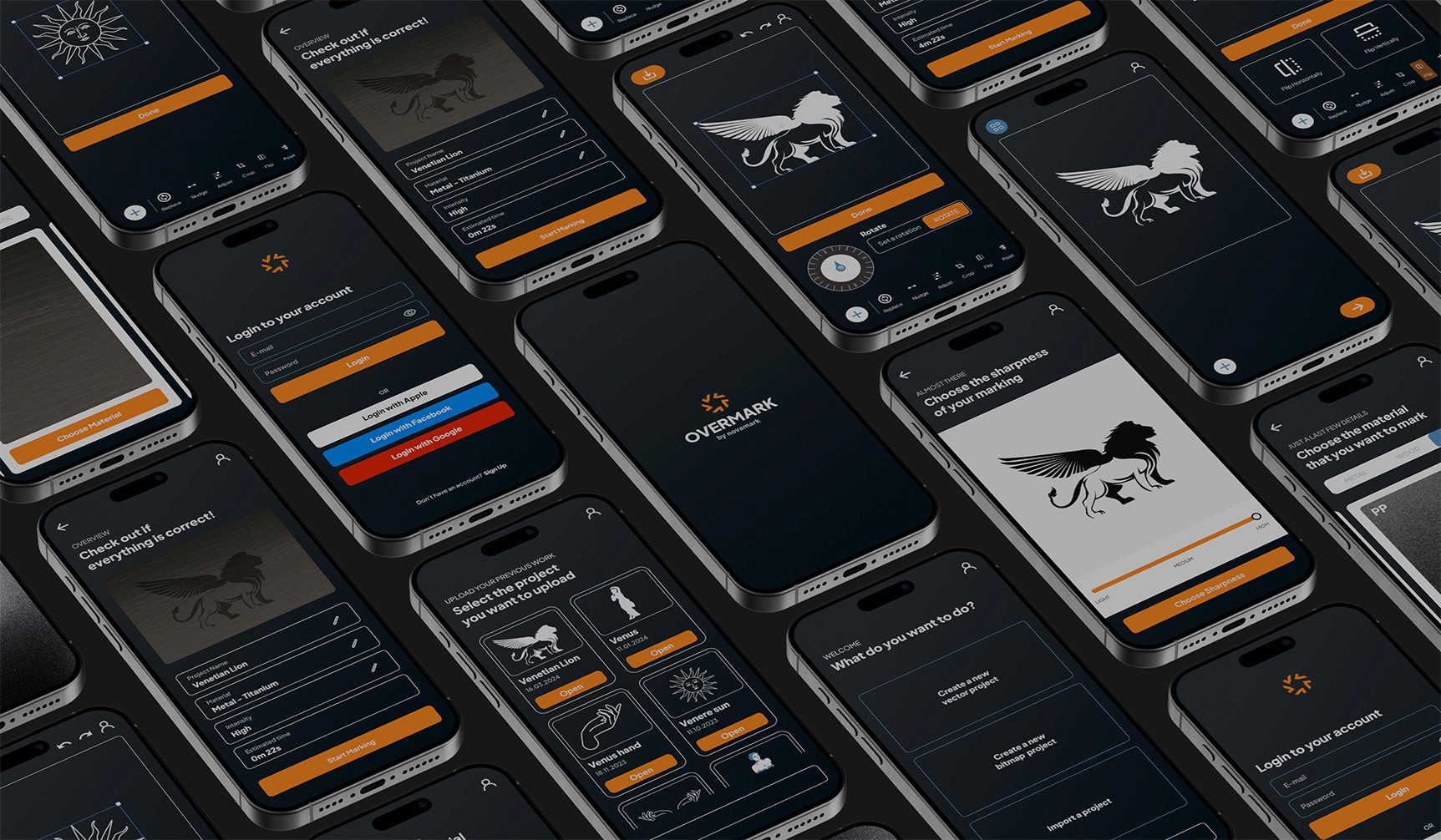
App was developed over 3 months following design handoff. I provided ongoing design QA and refinement.
Beta testing (6 weeks): Deployed to 8 operators across 3 customer sites. Collected usage data and feedback:
Quantitative metrics:
Average session duration: 3.2 minutes (quick in-and-out usage, as intended)
Jobs completed per session: 1.8 average (most sessions were single jobs)
Advanced settings accessed: 22% of jobs (confirms most users benefited from simple defaults)
Camera preview used: 91% of jobs (validates importance of this feature)
Qualitative feedback:
"Feels like using any other iPhone app—no learning curve" (Senior operator, Turin)
"I don't go to the office anymore unless I need to do paperwork" (Operator, Milan)
"Onboarding new people is way faster now" (Training manager)
Measured Outcomes
Compared 4-week period post-deployment to same period previous year (same operators, same production volume):
Time savings:
Average setup time per job: 1.2 minutes (down from 3.8 minutes with desktop)
68% reduction in setup time
Extrapolated across 70 jobs/shift = ~3 hours saved per operator per shift
Error reduction:
Material waste from mis-positioned marks: 2.1% of jobs (down from 5.8%)
64% reduction in positioning errors
Attributed to camera preview feature
Productivity increase:
Jobs completed per shift: average 76 (up from 68)
12% increase in throughput
Note: Operators were given same hourly wage—efficiency increase went to company bottom line
Business Impact
Beyond operational metrics, the app created strategic value:
Competitive differentiation: Equipment manufacturer now markets mobile control as standard feature. Sales team reports it's a "major talking point" in demos with prospects evaluating equipment purchases.
Market positioning: Allows manufacturer to compete with larger competitors who still rely on desktop-only control. Several customers cited mobile control as factor in purchase decision.
Reduced support burden: Training time for new operators reduced from 2-3 days to 4-6 hours. Manufacturer's customer support team reports fewer "how do I..." calls.